Python scripting in the Unreal Engine can unlock all of the potential that Python brings, including pipeline scripting, automation, and all of the amazing packages available through third party Python modules. Activating and using Python in Unreal is a simple process, and one that we will step through in this article.
To activate Python in Unreal, you need to enable the Python Editor Script plugin. To do so, go to Edit, Plugins, and search for Python. Make sure that the Python Editor Script Plugin checkbox is ticked. If it was not previously enabled, you will need to restart the Editor.

You now have the ability to use Python in Unreal. There are several ways to do so. First, you can type Python code in the Console Command line. You will need to switch from Cmd to Python in order to do this.

You can also run external scripts within the editor by copying the file location and pasting it in the Console Command line.

You can easily copy the path of a file on Windows by Shift+Right Clicking on a python file and choosing “Copy as Path.”

You can also run Python scripts within Editor Utility Blueprints and Widgets. Right click in your content browser and go to Editor Utilities, Editor Utility Widget.

Open it up and head to the graph editor. Right click in the Event Graph and type “Python.” You will see a number of functions related to Python pop up.

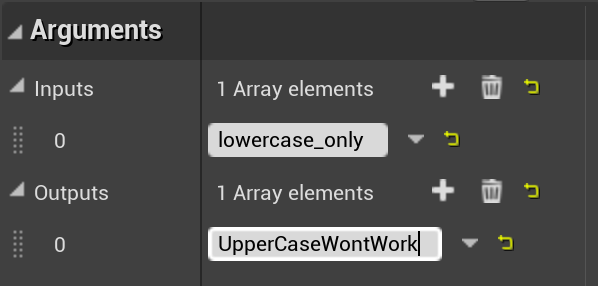
Execute Python Command and Execute Python Script both allow you to write a Python script which you can then use to attach to a button or other input through the widget. The difference between the two is that Execute Python Command will not accept inputs or outputs, whereas Execute Python Script will allow you to input and output variables.

When you create variables, make sure that you only use lowercase letters.
Unreal comes packaged with its own install of Python. In order to install packages, you will need access to the install location. If you have not changed the default install location, it will be installed here: C:\Program Files\Epic Games\{UNREAL_VERSION}\Engine\Binaries\ThirdParty\Python3\Win64\python.exe

Again, to copy the path, Shift+Right Click on the python.exe file and select “Copy as Path.”

Open the Command Line by going to the search bar and typing “cmd” – Choose Command Line.

To install a package to Unreal’s version of Python, paste the python.exe path location, then type “-m pip install {PACKAGE_NAME}”

so for instance, if you have Unreal 5.2 installed and you want to install Pandas to Python, the command would look like this:
“C:\Program Files\Epic Games\UE_5.2\Engine\Binaries\ThirdParty\Python3\Win64\python.exe” -m pip install pandas
And that’s it! Now you can use the powerful Python programming language within Unreal!
 Robot Brain Academy
Leave a comment