

Sometimes it can become very difficult to work with functions and variables the more complex blueprints become. You can easily have a list of variables longer than you can manage, making it a pain to try to find individual elements. Functions and Macros are no different and can be just as difficult to manage.
Thankfully Unreal has a way to organize variables and functions, making them easier to work with – categories and subcategories.
Categories and subcategories provide a way to keep things grouped together in a more readable way, making it easier and quicker to find variables, functions, and macros.
Categories
Creating categories is quite simple. When you click on a variable, function, or macro, go to the details panel. There is a dropdown menu called “Category”. Simply type a name into the field and hit enter.

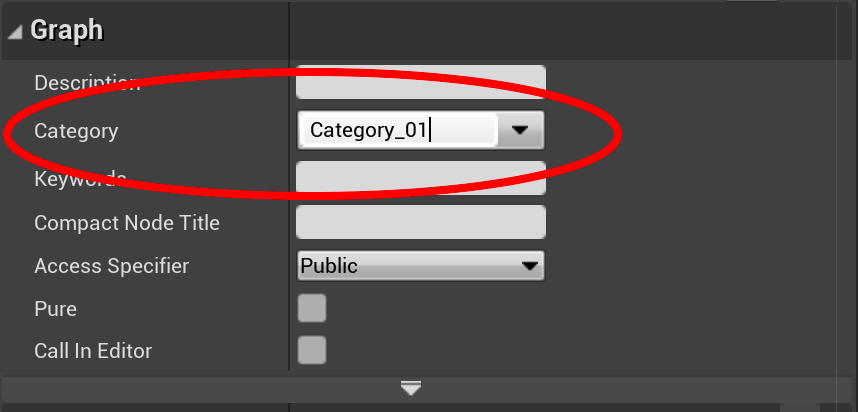
You have now created a new category!
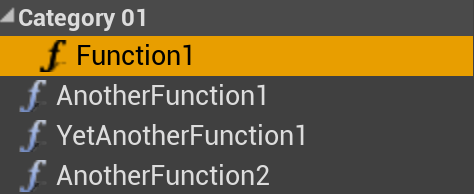

You can add more variables to the same category by choosing that category in the details panel, or by dragging the function or variable onto the name of the category in the MyBlueprint tab.


Subcategories
Now we’ve learned how to organize functions, macros, and variables into categories, but what if we want to get even more granular? What if a blueprint is getting so complicated that even the categories are getting bogged down? Well, thankfully, we can create subcategories!
To create a subcategory, we need to first type in the category name, then we need to put a | (vertical bar), and then the name of the subcategory.

So, for example, if we wanted to create a new subcategory called “Sub_01” in the “Category_01” category, then we would type “Category_01|Sub_01” in the category dropdown.

Once we hit Enter, we see the subcategory show up under the Category.
And there you have it! You can keep adding more and more subcategories by continuing to add | (vertical bars) after each subcategory – to the point that it becomes absolutely ridiculous!

 Robot Brain Academy
Leave a comment